


Connect to Claude and ChatGPT
You can connect BILLZ to the AI assistant you already use: Claude, ChatGPT, Cursor and others. Once connected, the assistant answers questions about your company using data from BILLZ:
- “How much did we sell in July, and what was the average receipt?”
- “Which products are running out in the warehouse?”
- “What is selling best this month?”
- “Which customer owes us the most?”
The assistant only reads data: it changes nothing in BILLZ, makes no sales and doesn’t touch stock levels.
This page is for company owners and staff. If you are a developer and want an agent to write code for the BILLZ API, you need the AI agent setup.
Before you start: integration key
Section titled “Before you start: integration key”The assistant signs in to BILLZ with an integration key. Create one in BILLZ: Settings → Company settings → Integration keys. Details are in Integration key.
Create a separate key for the assistant instead of the one your integrations use. If the key ever has to be reissued, only the assistant loses access, while cash registers, your website and other connections keep working.
The assistant sees only what the key is allowed to see: if the key’s role has no access to reports or customers, the assistant won’t see them either.
Connecting
Section titled “Connecting”The connection works the same way in every app:
- Add the address
https://mcp.billz.io/mcpto the app — without a key. - The app opens a BILLZ page in your browser. Paste your integration key there.
- BILLZ shows what data the app is asking for. Tick the groups you allow it to read and click “Allow”.
- The browser takes you back to the app — you can start asking questions.
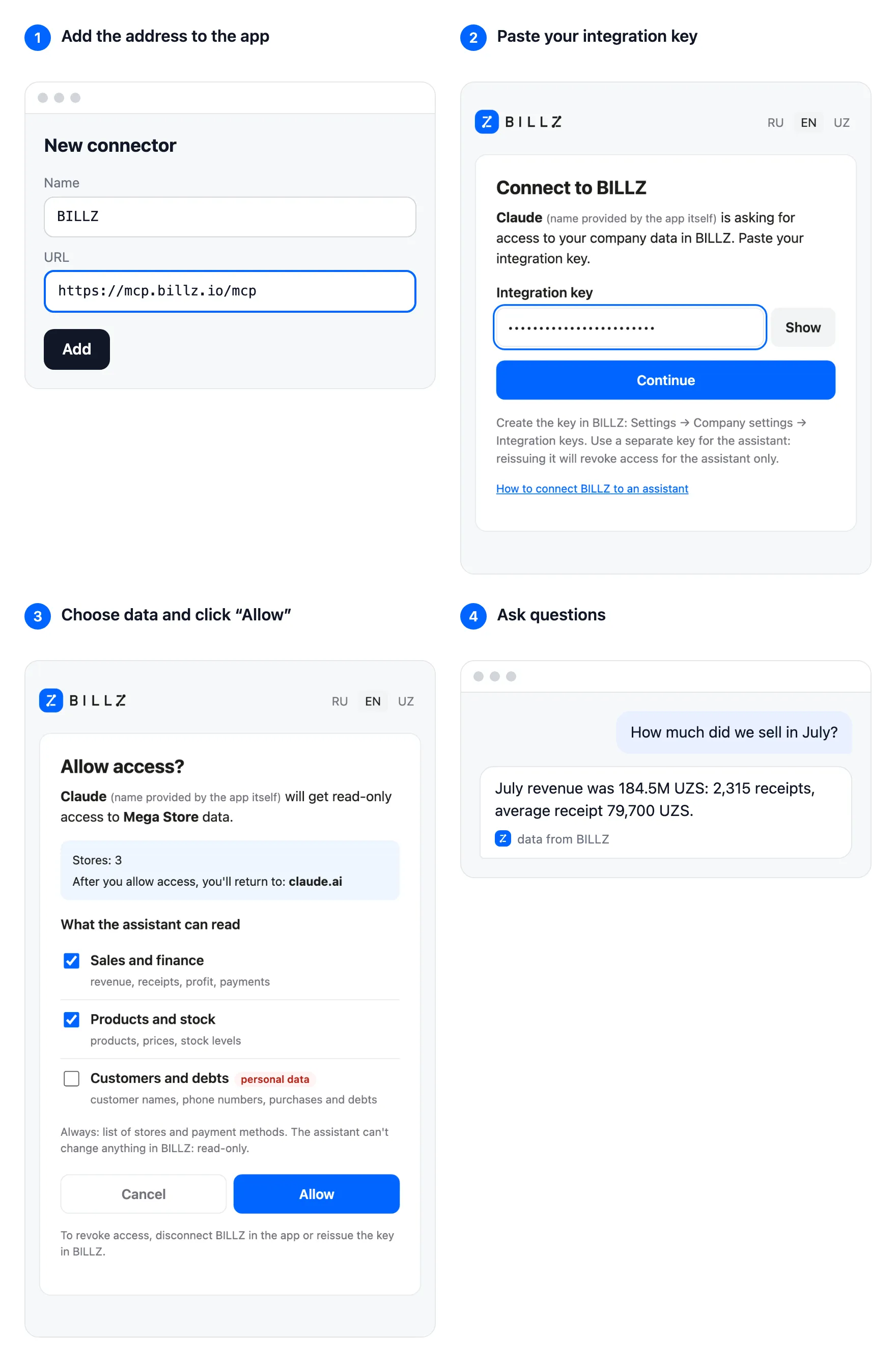
Below is where to add the address in each app.
Claude Desktop and claude.ai
Section titled “Claude Desktop and claude.ai”- Open Customize → Connectors and click Add custom connector.
- Name —
BILLZ, address —https://mcp.billz.io/mcp. If Claude asks how to sign in, choose Sign in now, and for the OAuth client choose Register automatically. Click Add. - Click Connect next to the new connector and sign in on the BILLZ page.
A connector added on claude.ai or in Claude Desktop also works in the Claude mobile app. On the Free plan you can add one custom connector. On the Team and Enterprise plans, custom connectors are added by the organization owner: Organization settings → Connectors → Add → Custom → Web. After that, each member finds BILLZ in Customize → Connectors and clicks Connect.
ChatGPT
Section titled “ChatGPT”- Open ChatGPT in your browser and go to Plugins — the address is
chatgpt.com/plugins. Click + and choose Add custom MCP server. - Name —
BILLZ, Server URL —https://mcp.billz.io/mcp, Authentication — OAuth. If ChatGPT asks you to choose a client registration method, choose DCR (Dynamic Client Registration). - Confirm the warning (I understand and want to continue) and click Create as a plugin.
- Install the new plugin and sign in on the BILLZ page when ChatGPT opens it.
In a new chat, type
@and pick BILLZ.
Custom MCP servers can be added only in ChatGPT on the web, and the option depends on your plan and workspace settings: if Add custom MCP server is missing, ask your workspace administrator.
Cursor
Section titled “Cursor”-
Open the
~/.cursor/mcp.jsonfile (servers for all projects) or create.cursor/mcp.jsonin your project folder. -
Add the server:
{"mcpServers": {"billz": { "url": "https://mcp.billz.io/mcp" }}} -
Save the file and restart Cursor. Open Customize → MCPs, find
billzand sign in: Cursor opens the BILLZ page.
VS Code
Section titled “VS Code”-
Run the MCP: Open User Configuration command — the server will be available in all your projects. Or create a
.vscode/mcp.jsonfile in your project. -
Add the server:
{"servers": {"billz": { "type": "http", "url": "https://mcp.billz.io/mcp" }}} -
Click Start above the server in the file (or run MCP: List Servers →
billz→ Start) and confirm the sign-in: VS Code opens the BILLZ page. Ask your questions in Copilot Chat.
Claude Code
Section titled “Claude Code”claude mcp add --transport http billz https://mcp.billz.io/mcpThen run /mcp in Claude Code, select billz and sign in in your browser. You can also do this
from the terminal: claude mcp login billz.
codex mcp add billz --url https://mcp.billz.io/mcpcodex mcp login billzGemini CLI
Section titled “Gemini CLI”Add the server to ~/.gemini/settings.json:
{ "mcpServers": { "billz": { "httpUrl": "https://mcp.billz.io/mcp" } }}Then run /mcp auth billz in Gemini CLI.
What data the assistant sees
Section titled “What data the assistant sees”When you connect, BILLZ asks what to allow. You don’t have to tick every group: the assistant won’t see data from unticked groups and will honestly say it has no access.
| Group | What the assistant can read |
|---|---|
| Sales and finance | revenue, receipts, profit, payments; best sellers, margin and turnover |
| Products and stock | products, prices, stock levels; search by name, SKU and barcode, stock on a date |
| Customers and debts — personal data | customer names, phone numbers, purchases and debts |
Always available: the list of stores and payment methods, the name of the key’s company.
The assistant can’t change anything in BILLZ: read-only. The company is determined by the key — the assistant can’t read another company’s data. To change the set of groups, disconnect BILLZ in the app and connect again.
How to revoke access
Section titled “How to revoke access”- Disconnect BILLZ in the app: remove the connector or server in the settings. Only this connection is closed.
- Reissue the key in BILLZ: Settings → Company settings → Integration keys. This closes all connections made with that key — in every app at once. To restore access, connect again with the new key.
If it doesn’t work
Section titled “If it doesn’t work”| What you see | What to do |
|---|---|
| “The key didn’t work” | Copy the whole key, without spaces. If the key was reissued, use the new one. |
| “This link has expired” | The sign-in page is valid for 10 minutes. Start connecting from the app again. |
| “Too many attempts” | Wait a few minutes and try again. |
| The app doesn’t open the browser | Check that a default browser is set. In Claude Code you can copy the sign-in link from the terminal. |
| The assistant says it has no access to the data | Check the key’s role permissions and the groups ticked when connecting. |
| The app asks you to sign in again | The key was reissued or the connection wasn’t used for 30 days. Connect again. |
Apps without OAuth sign-in
Section titled “Apps without OAuth sign-in”If an app can’t sign in with OAuth, or you need the connection for a script, pass the key
in the X-Billz-Token header. For example, in Claude Code:
claude mcp add --transport http billz \ --header "X-Billz-Token: <INTEGRATION KEY>" \ https://mcp.billz.io/mcpFor apps that only connect servers via a command, use the mcp-remote bridge. Other
options are in the server description (in Russian).
A key in the header gives the assistant all data groups. Don’t publish settings files that contain the key: if the key has reached outsiders, reissue it.
Security
Section titled “Security”- The integration key is entered only on the BILLZ page and stored on the BILLZ server in encrypted form. The key is never passed to the assistant app: the app gets its own access, which can be revoked.
- Access lasts 30 days and is extended as long as the assistant is in use.
- The company is determined by the key: the assistant sees only the stores and data of the company the key was issued to.
- Read-only: the assistant can’t create a sale or change a price or stock level.